Claude Design: Mobile App Click-Prototype & Claude Code Hand-off
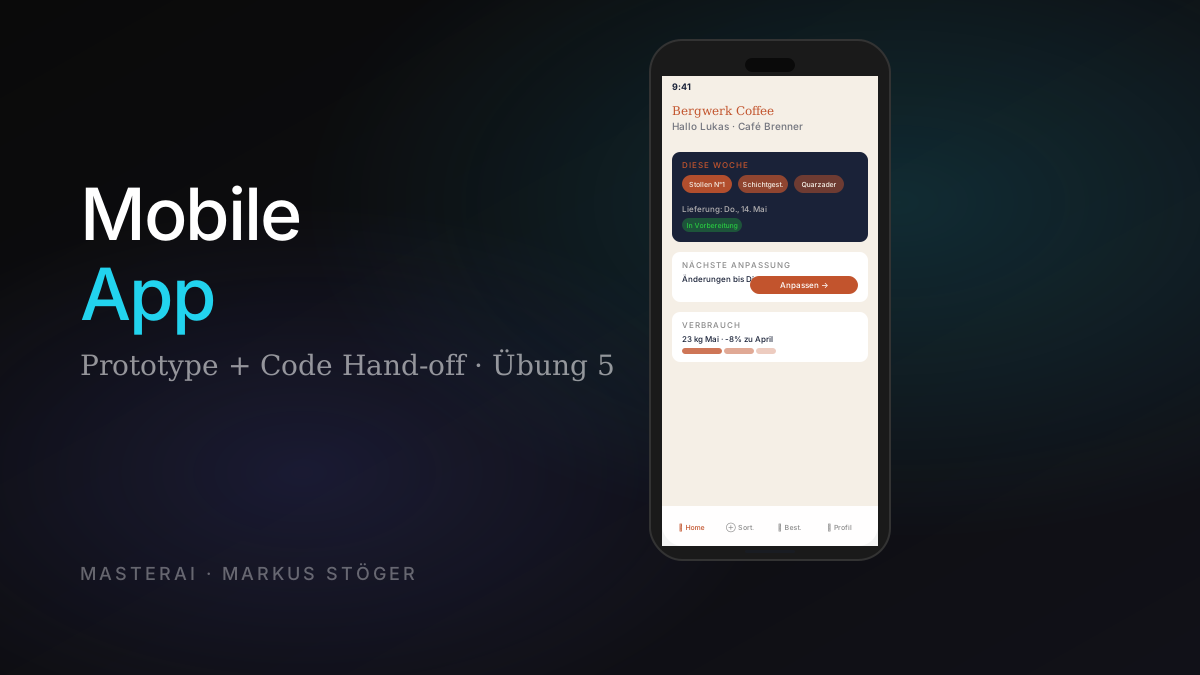
With the "Interactive prototype" skill, Claude Design produces real clickable prototypes: buttons work, navigation jumps between screens, modals open. This exercise builds a mobile app for B2B customers. And for the first time in this series, we use the hand-off to Claude Code, the step that turns the prototype into a real production app.
Part 5 of 5. Read Exercise 3 (Design System) first, since mobile UI benefits most from a brand system.
Why mobile app mockups are now accessible
A mobile app mockup used to be specialist territory: Figma + prototyping setup, or a UX designer on the team. For solo founders or small businesses without a design department, the choice was to spend the budget, or hand over a text description to developers and hope for the best.
Claude Design's Interactive Prototype fills this gap. Two direct use cases:
- Stakeholder validation before development: show the app to your co-founder or first pilot customer and collect real feedback before burning through a development budget
- Investor pitch with a clickable demo: instead of an abstract "we're building X", you hand over "here's X, try it yourself"
The scenario: Café Manager App
We're building a mobile app for B2B customers (café owners, restaurant managers, hotel operators) to manage their weekly coffee bean subscription on the go.
Core screens:
- Onboarding/Splash
- Dashboard (current delivery, next adjustment, consumption)
- Product catalog with filtering
- Adjust order (quantities, varieties, pause)
- Profile & Support
Step 1: Prepare the screen brief
More than with websites and decks, detail level matters here. Per screen, define:
- Name + purpose in one sentence
- Data points shown (3–7 per screen)
- Actions the user can trigger (1–3 per screen)
- Navigation target where each action leads
Why this matters: Mobile screens are dense. No whitespace to improvise. A weak brief leads to screens that look correct but are dead: buttons with no destination, missing empty states.
Full example (excerpt):
# Brew & Brand Café Manager — Mobile App Screens

Format: iOS-style, 9:19.5 (iPhone frame)
Navigation: Bottom tab bar with 4 tabs

## Screen 2: Dashboard / Overview

Content:
- Greeting: "Hello Lucas" (The Craft Café)
- Card "This Week": 4 bean chips with quantities, delivery date,
  status "In preparation"
- Card "Next adjustment": CTA "Adjust order" → Screen 4
- Card "Consumption": 23 kg in May, bar chart

## Screen 4: Adjust Order

Content:
- Per bean: variety, quantity in kg (stepper +/-),
  toggle "Include this week"
- Delivery: date picker (tappable)
- Toggle: "Pause this week"
- Sticky bottom button: "Save changes" (disabled until dirty)

Actions:
- Stepper → live-update quantities
- "Save" → confirmation modal → back to Dashboard
- "Cancel" → back without saving
Step 2: Create project and choose skills
- Go to claude.ai/design → "New Project" → "Prototype"
- Name: "Café Manager App"
- Design system: select your published system from Exercise 3
- Choose High Fidelity (not Wireframe)
- Click "Create"
Wireframe vs. High Fidelity: Wireframe for early internal discussion. High Fidelity for stakeholder reviews, investor pitches and the Claude Code hand-off: production-ready look from the start.
Skills combination:
| Category | Skill | Why | |----------|-------|-----| | Output-Type | Interactive prototype | Working app with real interactions | | Behavior | Make tweakable | State toggles in the Tweak Panel | | Export-Format | Save as standalone HTML | Backup and sharing option |
Step 3: Opening prompt
Make an interactive mobile app prototype from the attached
screens briefing.

Format: iOS-style mobile app in an iPhone frame (status bar with
time 9:41, home indicator). 5 screens with real click-through
navigation between them.

Audience: Café and restaurant owners, age 35–60,
moderate tech literacy. They use this app between customer
orders, often one-handed.

Visual style: Use the Brew & Brand Coffee design system. Editorial
but mobile-optimized — larger touch targets, generous tap areas,
no hover states.

Interaction design:
- Bottom tab bar with 4 tabs (Dashboard, Catalog, Order, Profile)
  persistent across screens 2–5
- Active tab visually distinct
- All buttons must be tappable and lead somewhere — no dead ends
- Steppers (+/-) update displayed values
- Toggles visually flip when tapped
- Modals slide up from bottom (iOS bottom sheet pattern)

Mobile-native feel:
- Status bar always visible
- Bottom safe-area respected
- No web-style hover effects
- iOS-native easings

Add a Tweak Panel:
- Auth state toggle (logged-out / logged-in)
- Order state toggle (active / paused) — affects dashboard
  and adjust screen synchronously
- Accent color swatches from the brand palette

Generate all 5 screens, fully wired up.
Step 4: What Claude builds (no Clarifying Questions flow)
Clickable mobile prototypes don't trigger a Clarifying Questions flow when your brief is well structured. Claude starts building directly and shows which decisions it's making:
Screens
1. Dashboard — Greeting, "This Week" card with 4 bean chips,
   "Next Adjustment" card, "Consumption" card with mini chart.
2. Catalog — 5 filter chips (live filter), 6 bean cards,
   tap → detail sheet slides up.
3. Order — per-bean Toggle + Stepper (active),
   date picker sheet, pause toggle, sticky save bar
   (disabled until dirty) → confirmation sheet → back to Dashboard.
4. Profile — Avatar, Account/Service/App sections, call sheet,
   Sign out returns to splash.

Mobile-native bits
- Translucent bottom tab bar with active indicator
- 44px tap targets on steppers
- Sheets slide up with iOS easing
- iOS-style toggles
Step 5: Read the Caveats section
Transparent about what Claude inferred and what to check:
Caveats / next
- The Decaf filter chip scrolls horizontally (intentional, but
  worth noting on first glance).
- Confirmation sheet currently just returns to Dashboard —
  could persist the new saved snapshot for "undo".
Both are useful: a deliberate design decision that's named, and an improvement suggestion for the next round.
Step 6: Review and Tweak Panel
The Tweak Panel for mobile apps is generated to match the concrete output:
| Control | Type | Effect | |---------|------|--------| | Auth | Toggle | Splash ↔ Dashboard as entry screen | | Order | Toggle | Active ↔ Paused; dashboard and adjust screen sync | | Accent color | Swatches | 4 colors from the brand system | | Quick-Nav buttons | Buttons | Jump directly to any tab |
Quick-Nav buttons are the most important feature for reviews: You don't need to reach every screen through the happy path. Direct jumps to any tab save significant review time.
Review strategy (the "first use" test):
- Complete happy path: Splash → Dashboard → Adjust order → Save → back
- Test every tab and card: any dead ends?
- State variations via Tweak Panel: Auth to Splash, Order to Paused. Does the app stay consistent?
Mobile-specific checks:
- Touch targets at least 44×44 pt (iOS standard)
- Sticky bottom buttons respect the home indicator zone
- Body text at least 16 pt
Step 7: Mobile-specific iteration
Pattern 1: Tweak Panel for state variants
"Add a Tweak Panel toggle: 'End of month' state.
When ON, show an additional 'Next Month Plan' card with
a brief summary of next month's default delivery."
Pattern 2: Mobile-native details
"Make all sticky bottom buttons 16pt taller and add 12pt
extra padding above the home indicator area."

"Tab bar icons feel oversized. Reduce icon size by 20%
and add 4pt vertical spacing between icon and label."

"When buttons are tapped, briefly scale to 0.96× for 100ms
before the action triggers. Native iOS feel."
Pattern 3: Request empty states
"For the Dashboard screen, generate an empty state variant:
User logged in but no order placed yet.
Show: Headline 'No delivery scheduled yet',
CTA 'Book a consultation' (links to Profile screen),
minimal illustration in brand colors, no stock."
Step 8: Hand-off to Claude Code
This is the step that makes Claude Design fundamentally different from Figma or Sketch. You hand off the prototype to Claude Code, which builds a real app from it.
What happens in the hand-off
- In the Share menu: select "Handoff to Claude Code"
- Choose: local Claude Code (in your editor) or Claude Code Web
- Claude Design packages the complete bundle:
- All screens as HTML/CSS/JS
- Design system tokens
- Component structure
- Navigation logic
- State definitions from the Tweak Panel
Hand-off prompt
I'm attaching the Claude Design handoff bundle for the
Café Manager mobile app.

Please:
1. Set up a React Native project with Expo
2. Use Tailwind via NativeWind for styling —
   match design system tokens 1:1 from the bundle
3. Implement all 5 screens with React Navigation:
   - Stack navigator for auth flow
   - Bottom tab navigator for main app
4. Make steppers, toggles and date pickers functional
   with React state
5. Mock the API layer — placeholder fetch functions
   returning static data matching the prototype content
6. Basic accessibility: VoiceOver labels for all
   interactive elements
7. README with setup instructions and where to plug in
   real API endpoints later

Use latest stable dependencies.
Don't write any code yet — first show me the proposed folder
structure and tech-stack choices so I can confirm.
The last sentence is critical. "Don't write any code yet" forces Claude Code into plan mode before generating thousands of lines you'd need to roll back.
What you have afterward
After 30–60 minutes of Claude Code generation:
- Working React Native app with all 5 screens
- Real navigation with React Navigation
- Working state for steppers, toggles, tab selection
- Prepared API layer with mocks
- README with setup instructions
What still needs work for production:
- Connect real backend API
- Push notifications
- Finalize app icon and splash screen
- iOS and Android testing
- TestFlight / Play Store setup
But: From idea to deployable mobile app prototype in one working day. That's the efficiency jump.
Pro tips
Brief detail level: For mobile apps: all data points concrete (not "list of beans" but the actual names), all actions with navigation targets, edge cases named.
Demand native iOS feel explicitly: "Make it feel like a native iOS app: no hover states, native easings, safe-area respect." Otherwise the output drifts toward web-feel.
Name the tech stack in the hand-off: React Native + Expo (cross-platform, fast iteration), Flutter (if your team knows Dart), Swift/SwiftUI (iOS-only, native performance). Write your choice explicitly in the hand-off prompt.
Success check
- ✓ 5 screens with concrete data points and actions in the brief
- ✓ High Fidelity chosen, design system selected in the dialog
- ✓ Interactive prototype + Make tweakable skills activated
- ✓ Happy path from Splash through order save fully clickable
- ✓ Tweak Panel with Quick-Nav and state toggles actively used
- ✓ Touch target sizes and safe area checked in iteration
- ✓ Hand-off to Claude Code at least opened in Share menu
Sources
From the author
These tutorials come out of the work itself, not out of research: I put AI to work in real companies and write down what holds up. If you want to know which of your processes are worth it, I offer AI consulting for small and mid-sized companies. If you already know what to build, I handle the AI integration into your systems.
Built with AI – the newsletter
Hands-on AI tutorials and the tools I actually use, straight to your inbox. Free, no hype.
Powered by Substack. Unsubscribe anytime.