Claude Design: Setting Up Your Own Brand Design System
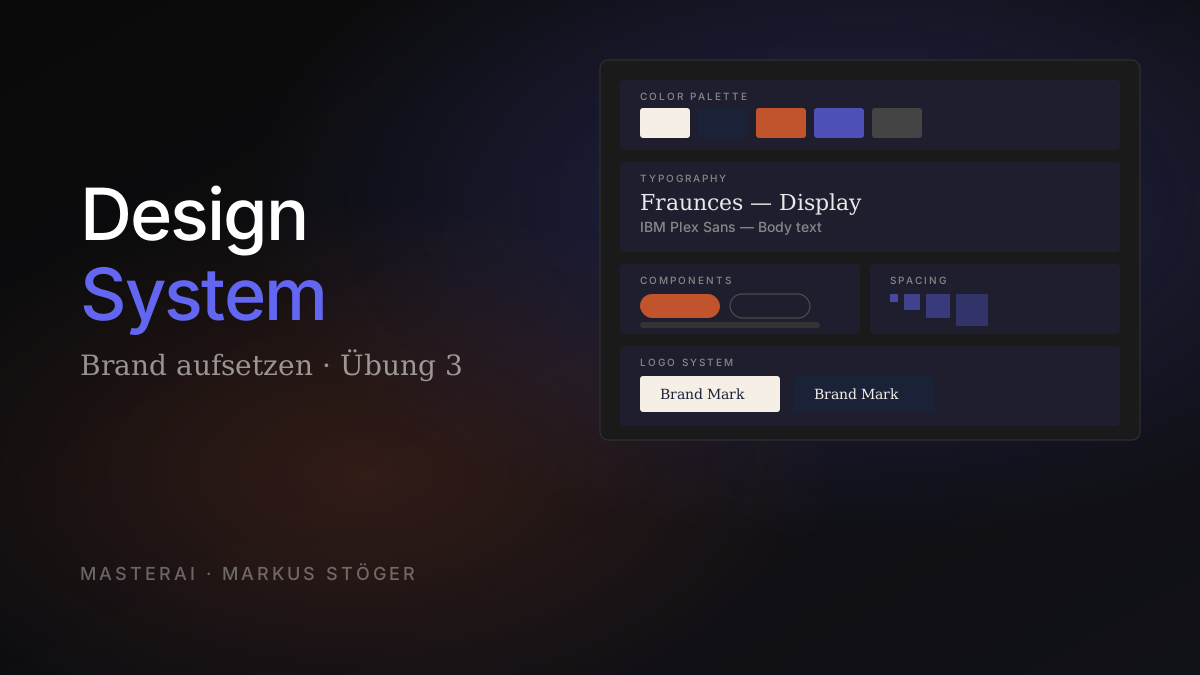
In Exercises 1 and 2 we worked with the "Frontend design" skill: aesthetic direction when no system is in place. That works for test projects. For real client work, your own brand, or recurring workflows it gets generic. This exercise changes that: you set up a system once that automatically makes every future project on-brand.
Part 3 of 5. Read Exercise 1 and Exercise 2 first if you're new to Claude Design.
Why now is the right time
The one-time investment pays off:
- 45–75 minutes of setup (including asset preparation)
- Every future project automatically uses your colors, typography and components
- Consistency across all outputs: landing page, pitch deck, mobile mockup all feel like one brand
The design system is the single biggest quality lever in the entire tool. Without it: solid but generic. With it: immediately recognizable.
What you need beforehand
Gather these assets before opening the setup dialog:
Minimum (required)
- Brand name + 1-sentence description with touchpoints (website? app? packaging?)
- At least 2 logo variants as PNG or SVG (light and dark background versions)
- Color palette: 3–5 colors with hex codes (primary, accent, neutrals)
- Fonts: at least one, ideally display + body, as
.woff2or.otf
Recommended
- Voice & tone statement: 2–3 sentences about the brand voice
- Anti-patterns: what the brand does not do (at least 3 concrete examples)
- An existing live site or Figma file as component style reference
Optional (power users)
- GitHub repo of existing products (or a frontend-focused subfolder)
- Local code folder with component examples
.figfile with design tokens and components- Photo or illustration library as visual language reference
If you have many unstructured brand files: Load them into a regular Claude.ai chat first and have Claude generate a consolidated
DESIGN.md. Use that in the "Any other notes" field. Attach the actual asset files (logos, fonts) directly regardless.
Step-by-step workflow
Step 1: Open the Design Systems area
- Go to claude.ai/design
- Top right: tab "Design systems"
- You'll see your existing systems (empty at first) and "Create new design system"
Note in the UI: "Only you can view these settings". Design systems are private per user (per organization for Team/Enterprise).
Step 2: Click "Create new design system"
The setup dialog opens with the heading "Set up your design system" and six input fields.
Step 3: Field 1, company name and blurb (required)
Format: [Name]: [description with all touchpoints]
The placeholder shows the intended format:
e.g. Mission Impastabowl: fast-casual pasta restaurant with in-store
touchscreen kiosk, mobile app and website
Example for Brew & Brand Coffee:
Brew & Brand Coffee: specialty coffee roastery with weekly
bean subscription for cafés, restaurants and hotels.
Touchpoints: marketing website, B2B customer portal,
packaging labels, email newsletters, occasional pitch decks.
Name your touchpoints specifically: "Website" is too vague. "Marketing website + B2B customer portal + packaging labels" helps Claude understand the right scope: which layouts and components are needed.
Step 4: Fields 2–5, sources (all optional, but recommended)
Slot A: Link code on GitHub
For public repos or component libraries. From the UI:
"This doesn't upload the whole codebase; Claude will copy selected files. For large codebases, we recommend attaching a frontend-focused subfolder."
For large repos: attach a subfolder (e.g. apps/marketing or packages/ui), not the entire monorepo.
Slot B: Link code from your computer
For local code that isn't in a public repo. Create a dedicated folder with only the relevant frontend components and style files.
Slot C: Upload a .fig file
The Figma file is parsed exclusively locally in your browser and never uploaded to Anthropic's servers. A clear privacy advantage over many other design tools.
If your Figma file has many pages (30+ mockups): create a simplified version first with only tokens and core components.
Slot D: Add fonts, logos and assets
What goes here:
- Logo variants (at least 2: light/dark), SVG preferred
- Fonts (display + body as
.woff2) - 5–10 representative photos or illustration examples
- Brand guidelines PDF if available
Step 5: Field 6, "Any other notes?" (the most important lever)
A large text field with placeholder:
e.g. We use a warm, earthy color palette with rounded corners.
Our brand voice is playful but professional...
Why this field is critical: This is where you give Claude the character of the brand. Logos and fonts are mechanics. Who the brand is lives here.
The three pillars of a good notes input
1. Visual Direction, the aesthetic language in words:
Visual: Editorial design language — like a high-quality lifestyle
magazine. Warm cream backgrounds (#F5EFE6) with deep navy ink
(#1A2238). Terracotta (#C2542D) as accent, used sparingly.
Serif headlines (Fraunces, italic for emphasis). Clean sans-serif
body (IBM Plex Sans). Generous whitespace. Asymmetric layouts
with intentional empty space.
2. Voice & Tone, how the brand speaks:
Voice: Direct, craft-oriented, no marketing speak. Short declarative
statements. Confident without arrogance. Specific over vague —
"freshly roasted on Monday, delivered Thursday" instead of
"the freshest beans".
3. Anti-patterns, what the brand does not do (at least 5, specific):
Anti-patterns:
- No stock photography ever
- No corporate blue or generic gradients
- No glassmorphism or neumorphism
- No exclamation marks in copy
- No buzzwords: "passionate", "premium", "innovative"
- No carousel sliders
- No headlines wrapping to 4+ lines
Why anti-patterns matter so much: A "do this" list doesn't prevent Claude from falling into clichés anyway. A "don't do this" list explicitly closes those doors. Output quality improves by roughly 30% when you define anti-patterns clearly.
Step 6: Click "Continue to generation →"
Click the button in the top right. Now wait 5 minutes and keep the tab open.
Claude produces during this time:
- Logo system: reconstructed from your assets or inferred (transparently marked as "inference, not vendor asset")
- Type stack and color palette: extracted from your inputs
- Component library: buttons, cards, nav, forms etc.
- UI kits for each of your touchpoints
Step 7: Review draft, the structured review
After generation you land in "Review draft" mode. You rate each element:
- "Looks good": keep it
- "Needs work": a text field opens: be specific, avoid adjectives
Efficient review order: Brand Assets → Colors → Typography → Components → Spacing
What works in the feedback field:
✓ "Reduce the primary weight from 700 to 600 — too heavy for body text"
✓ "The cream background is slightly too warm — shift from #F5EFE6 to #F2EDDE"
✗ "Looks too dark" — too vague
✗ "Make it nicer" — not actionable
Step 8: Read the Caveats section
At the end of the chat log, Claude transparently shows what it reconstructed and what you still need to replace:
Caveats:
- Logo reconstruction: inferred from uploaded assets —
  replace with master SVG before production use
- Font: loaded via Google Fonts CDN — confirm license
  for commercial use in your brand assets
- Product photography: placeholders inferred from brief —
  no actual product photos uploaded
Treat this list as your action list before the first real project use, not as an appendix.
Step 9: Publish
When review mode is complete: click "Publish".
The system now appears as a dropdown option when creating any new project. All future outputs (landing pages, decks, videos, mobile mockups) are automatically on-brand.
When to set up multiple design systems
As a freelancer or agency: One system per client. When creating a project, pick the right one from the dropdown.
For sub-brands or product lines: When a brand has distinctly different touchpoints (e.g. consumer goods vs. enterprise SaaS), separate systems make sense.
Iterate, don't perfect: Build the system cleanly once, use it in 2–3 projects, refine it then. You'll only discover what's missing once you're actually working.
Sources
From the author
These tutorials come out of the work itself, not out of research: I put AI to work in real companies and write down what holds up. If you want to know which of your processes are worth it, I offer AI consulting for small and mid-sized companies. If you already know what to build, I handle the AI integration into your systems.
Built with AI – the newsletter
Hands-on AI tutorials and the tools I actually use, straight to your inbox. Free, no hype.
Powered by Substack. Unsubscribe anytime.