Claude Design: Animated Marketing Video
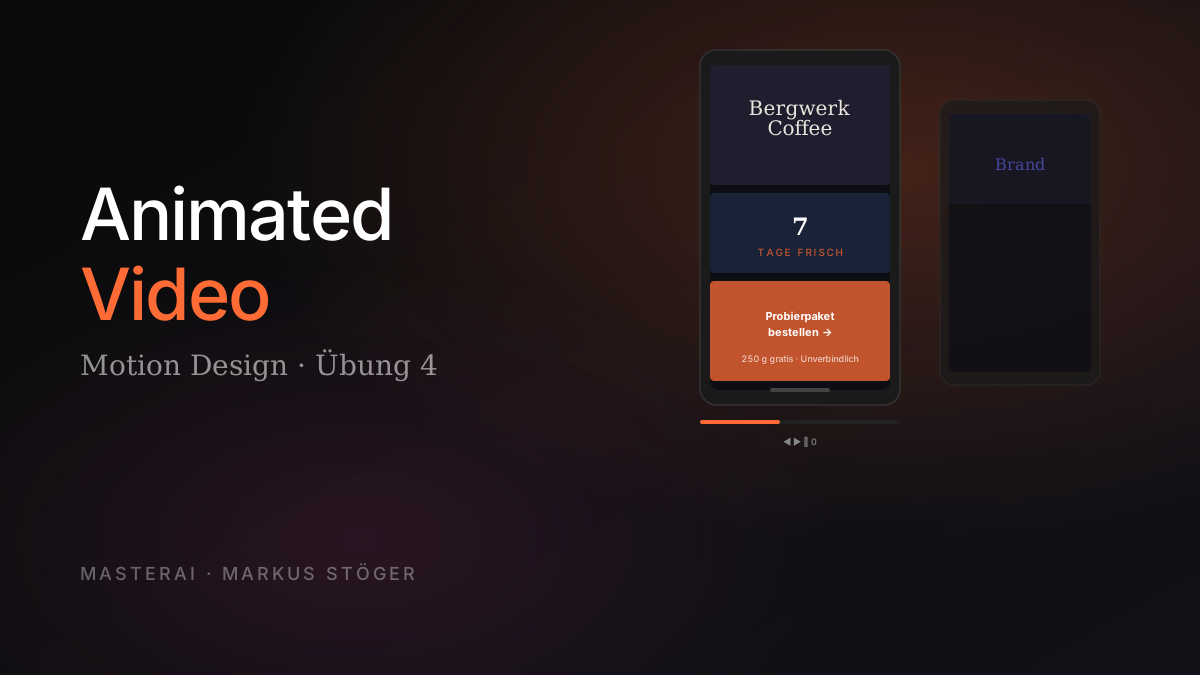
With the "Animated video" skill, Claude Design produces motion graphics with scene cuts, effects and audio-ready pacing, well beyond GIFs or slide transitions. This exercise produces a launch video for social media, the first real application of the design system set up in Exercise 3.
Part 4 of 5. Read Exercise 3 (Design System) first. Animated videos benefit most from a published brand system.
What the skill can do (and what it can't)
What works
- Cinematic motion graphics: scenes with transitions, entrance animations, continuous micro-motion
- Typography animations: headlines that fly in, fade in, typewriter effects
- Data visualizations in motion: counters, bar growth, card reveals
- Brand-consistent outputs: when a design system is set up, the video uses your colors, typography and components
- Captions: available as a toggle, important for sound-off viewing
- Custom tweak controls: for caption toggle, accent colors, CTA text, CTA URL
- Aspect ratios: 16:9 (YouTube), 9:16 (Reels/TikTok), 1:1 (feed)
What doesn't (yet) work
- No real video file: the output is HTML/CSS/JS, not MP4. Workaround: screen recording.
- No organic animations: characters, fluid movements, frame-by-frame artistry aren't a strength
- No audio: voiceover or music need to be added separately in an editor
- No stock footage integration: no direct connection to stock video libraries
For brand announcements, explainer snippets, product launches and data stories on social media: already productively usable. For classic video ads with actors or organic scenes, this isn't the right tool.
Why animated videos are now accessible
Animated content for marketing used to mean one of three things:
- Expensive freelancer: hire a motion designer ($1,500–$15,000 per video, 1–6 week turnaround)
- Tool marathon: learn After Effects, with months of onboarding and an expensive license
- Skip it: use static graphics and leave reach on the table on platforms that prioritize motion
A 30-second launch video that used to cost $3,000 now takes an hour.
Step 1: Prepare the scene briefing
Same principle as decks: story first, design second. Work out the scenes in a regular Claude.ai chat before going to Claude Design.
Example prompt:
I need a scene briefing for a 35-second animated launch video.

Brand: Brew & Brand Coffee — weekly bean subscription
for the hospitality industry.

Goal: Awareness for the subscription + conversion to
"Order trial pack".

Format: 9:16 vertical, social media (Instagram Reels, TikTok).

Tone: Editorial, direct, craft-oriented. No marketing speak.

Deliver:
- 6–7 scenes at 3–6 seconds each
- Per scene: headline (max. 5 words), sub-text (max. 8 words),
  visual description, desired animation
- Total: 30–40 seconds
- Last scene: clear CTA
Example output (excerpt):
Scene 1 (3s) — Brand intro
  Headline: Brew & Brand Coffee
  Sub: Since 2019
  Animation: Letter-by-letter reveal, gentle fade

Scene 3 (6s) — Promise
  Headline: Seven days fresh.
  Visual: Date counter counts from 30 down to 7
  Animation: Counter decrement, hard cut to "."

Scene 7 (5s) — CTA
  Headline: Order your trial pack.
  Sub: 250g free. No commitment.
  Animation: Button reveal, gentle pulse
Save this as video-script.md.
Step 2: Create project and choose skills
- Go to claude.ai/design → "New Project" → "Prototype"
- Name: e.g. "Launch Video 9:16"
- Design system: select your published system from Exercise 3
- Click "Create"
Skills combination:
| Category | Skill | Why | |----------|-------|-----| | Output-Type | Animated video | Timeline-based motion design | | Behavior | Make tweakable | Activates live controls for speed, captions, colors etc. | | Export-Format | Save as standalone HTML | Download the video as an HTML file |
If no design system: additionally activate "Frontend design".
Step 3: Opening prompt + briefing upload
Upload the briefing as a .md file:
Make an animated video from the attached scene briefing.

Format: 9:16 vertical, 35 seconds, social media
(Instagram Reels, TikTok, LinkedIn Video).

Audience: Café and restaurant owners, age 30–55, scrolling their
feeds — most likely with sound off.

Visual style: Use the Brew & Brand Coffee design system (editorial,
cream/ink/terracotta, serif display, sans-serif body,
generous whitespace).

Pacing:
- Hard cuts between most scenes
- Reserve 2–3 effect transitions for key moments
- Subtle continuous motion within scenes (breathing, micro-rotation)
  so nothing feels static

Captions: On by default — English, lower third, ink-on-cream
background pill for contrast.

End frame: Hold for 2 seconds on the CTA.
Step 4: What happens next (no Clarifying Questions flow)
Animated videos don't trigger a Clarifying Questions flow. Claude starts building directly. Instead you see live which pacing and animation decisions are being made:
Pacing details
- Each scene uses a different easing mix (easeInQuad for falls,
  easeOutBack for tags, easeInOutCubic for camera moves)
- Continuous micro-motion: beans breathe, CTA button pulses twice

Captions: lower-third pill, mono eyebrow + sans headline.
Hidden on CTA scene since that scene IS its own typographic
composition.

Tweaks panel: caption toggle, accent color swatches, CTA copy + URL.
More useful than a questionnaire: you see directly which easing strategy was chosen per element.
Step 5: Read the Caveats section
Like design systems, Claude provides a Caveats list at the end:
Caveats
- Product names in scene 4 are placeholders — swap real
  product names before publishing
- The QR code is a stylised placeholder, not scannable.
  Replace with a real QR before export.
Claude doesn't invent fake products or scannable QR codes. Everything that isn't real is transparently labeled.
Step 6: Playback controls
Keyboard shortcuts for reviewing:
| Key | Action | |-----|--------| | Spacebar | Play / Pause | | ← | Jump back | | → | Jump forward | | 0 | Reset to beginning |
Plus a timeline bar at the bottom for jumping directly to specific scenes.
Strategy: Watch at least 2 complete playthroughs before iterating:
- Pacing per scene: too long? Too short?
- Scene transitions: intentional or random-feeling?
- Caption readability against dynamic backgrounds
- End frame: does the CTA hold long enough to tap?
Step 7: The Tweak Panel
With "Make tweakable" active, the Tweak Panel appears (toggle top right). Unlike render tools with fixed effect sliders, Claude generates controls specific to your concrete video output.
From a real session:
| Control | Type | Effect | |---------|------|--------| | Show captions | Toggle | Captions on/off, live in the video | | Scene progress bar | Toggle | Progress indicator | | Accent | Color swatches | 5 colors from the design system, switchable live | | Button | Text field | CTA text directly editable | | URL | Text field | CTA target URL directly editable |
Efficiency lever: Vary the same video for multiple campaigns without regenerating: different accent colors for A/B tests, different CTAs for different funnels.
Request missing controls explicitly:
"Add a tweak control for video playback speed —
a slider from 0.7× to 1.4×."

"Add a font-size slider for captions (24–40px) —
different platforms need different sizes."
Step 8: Iteration via inline comments
Click directly into the scene you want to change:
[Click in Scene 3]
"Counter counts too fast — extend to 3 seconds.
The period should land as a hard cut after 0.3s pause."

[Click in Scene 5]
"Reduce stagger between the 4 cards to 0.1s."

[Click in CTA scene]
"Slow the arrow pulse to a 1.2s cycle."
One change per comment. With five mixed changes in one comment, Claude often misses one.
Structural changes via chat:
"Change all scene transitions from soft fades to hard cuts,
except the transition from scene 6 to 7."

"Add a subtle vignette across the entire video —
stronger than standard, more cinematic."
Export: the workaround
The output is HTML/CSS/JS, not MP4. Two realistic export paths:
Path A: Standalone HTML
- Download as a single HTML file
- Playable in browser, works offline
- Usable directly on landing pages or shareable as a showroom link
Path B: Screen recording → MP4
- macOS: QuickTime Player → "New Screen Recording" → select canvas area
- Windows: Xbox Game Bar (Win + G) or OBS
- The resulting MP4 or MOV uploads directly to Instagram, TikTok, LinkedIn
For better quality: Loom, CleanShot X or ScreenStudio deliver better framerate than system default screen recording.
Sources
From the author
These tutorials come out of the work itself, not out of research: I put AI to work in real companies and write down what holds up. If you want to know which of your processes are worth it, I offer AI consulting for small and mid-sized companies. If you already know what to build, I handle the AI integration into your systems.
Built with AI – the newsletter
Hands-on AI tutorials and the tools I actually use, straight to your inbox. Free, no hype.
Powered by Substack. Unsubscribe anytime.